

Overview
Publishing sends your product data from Sellufy to an external sales channel such as Shopify, WooCommerce, or a custom storefront. Publishing is channel-centric: you select a channel and choose which products to publish to it. Once published, the product’sstatus changes to published and its channel information is tracked in the product record. You can publish to multiple channels, and each one gets its own entry with the external ID and timestamps.
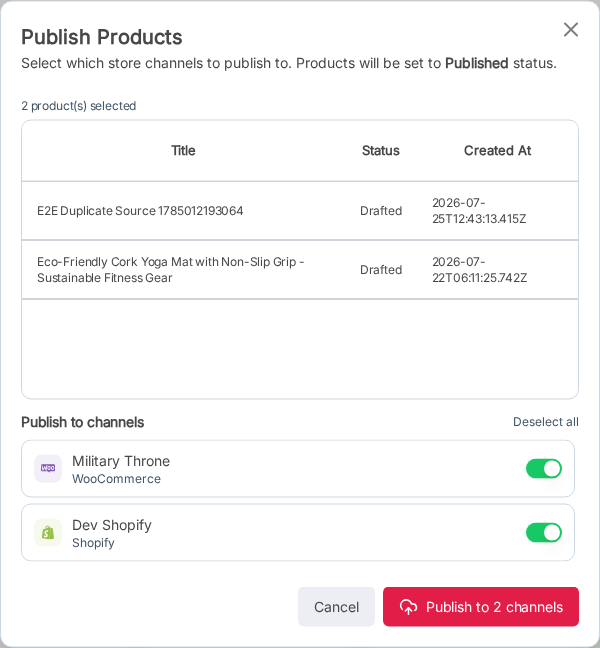
Publish a Single Product
1
Open the product
Navigate to the product you want to publish from the Products list.
2
Open the publish dialog
Click Publish in the product toolbar.
3
Select a channel
Choose the target channel from the dropdown. Only channels with an active connection are listed.
4
Confirm
Click Publish. The product is sent to the channel’s API and a
publishedChannels entry is recorded.Bulk Publish
1
Select products
On the Products list, use the row checkboxes to select the products you want to publish.
2
Click Bulk Actions → Publish
Click Bulk Actions in the toolbar and select Publish.
3
Choose a channel
Select the target channel from the dropdown.
4
Publish
Click Publish.When publishing 10 or more products, the operation is processed asynchronously in the background. You’ll be notified when it completes.
Sync Published Products
After publishing, you may update product data in Sellufy and push those changes to the channel without republishing.1
Open the product
Navigate to an already-published product.
2
Click Sync
Click the Sync button in the product toolbar.
3
Select channels (optional)
If the product is published to multiple channels, you can choose which ones to sync. Leave empty to sync all.
4
Confirm
Click Sync. The product data is sent to the selected channels and the
lastSyncedAt timestamp is updated.Unpublish (Remove from Channel)
1
Open the product
Navigate to the published product.
2
Click Unsync
Click the Unsync button in the product toolbar.
3
Select channels
Choose which channels to remove the product from.
4
Confirm
Click Unsync. The product is deleted from the selected channels and its
publishedChannels entries are removed.If all channels are removed, the product’s status reverts to drafted.Channel Integrations
Each channel provider has its own API integration:Product Status Flow
- Drafted: product is not available on any external channel
- Published: product is published to at least one external channel
Published Channels Tracking
Each published product stores an array of channel entries in itspublishedChannels field: