

Overview
AI Enrich has two modes accessible from a single dialog:- Create with AI: generate a brand-new product from a text description, attached images, or documents
- Enhance existing: automatically fill in missing fields and improve content on products already in your catalog
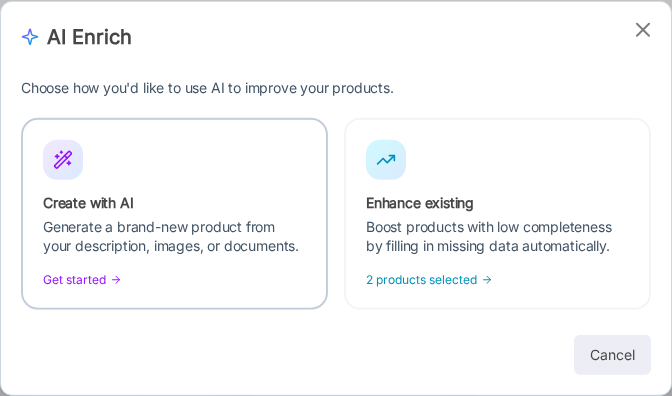
Open AI Enrich
Click AI Enrich (sparkles icon) in the Products toolbar. If you have products selected, the Enhance mode will pre-load them as targets.Create with AI
Generate a new product using a description you provide.1
Choose product type
Select Simple (single SKU, no variants) or Variable (multiple variants, sizes, colors, etc.).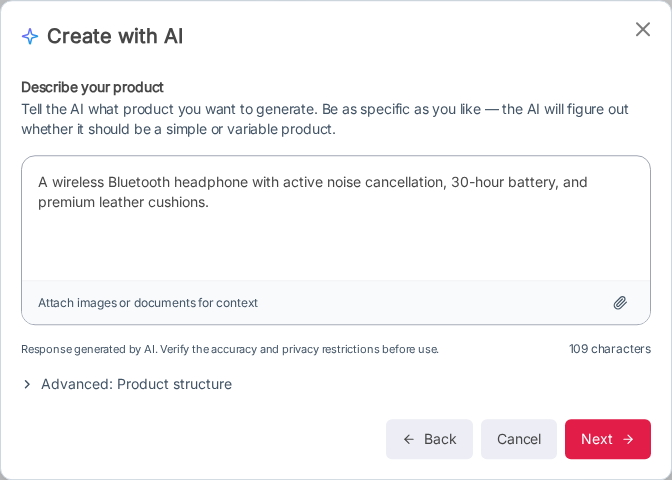
2
Describe your product
Type a description of the product you want to generate. Be as specific as you like, including materials, target audience, price range, or competing products.You can also attach images or documents (images, PDFs, DOCs, TXTs) to give the AI visual or written context.
3
Add additional context (optional)
On the next screen you can optionally add more context: pricing targets, competitors, margin requirements, etc.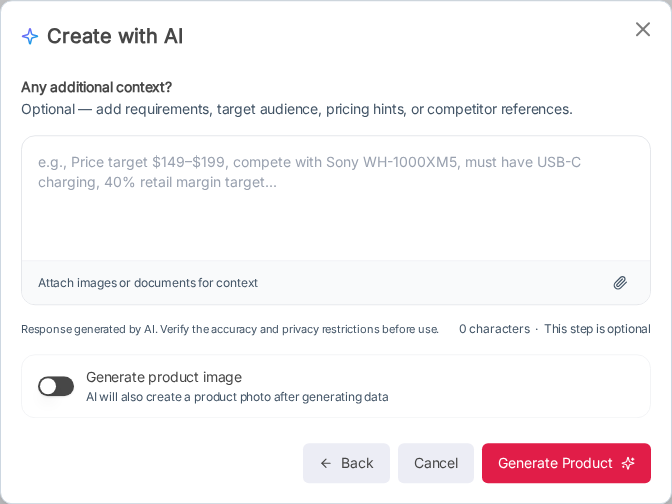 Toggle Generate product image to have AI also create a product photo after the product data is generated.
4
Generate
Click Generate Product. The dialog shows a live generation screen while the AI works. When complete, a checklist confirms each piece of content that was generated (title, description, categories, tags, attributes, pricing hints, and optionally an image). Click Close. The new product is now in your catalog as a draft.
Generating multiple products at once
Include a number in your description (e.g. “Create 5 wireless headphone models…”) and the AI will generate each product sequentially, showing individual status indicators for each.Enhance Existing
Fill in missing fields and improve content on products already in your catalog.1
Select products
On the Products list, check the products you want to enrich, then click AI Enrich.
2
Choose product type
Select Simple or Variable so the AI tailors its output to the correct product structure.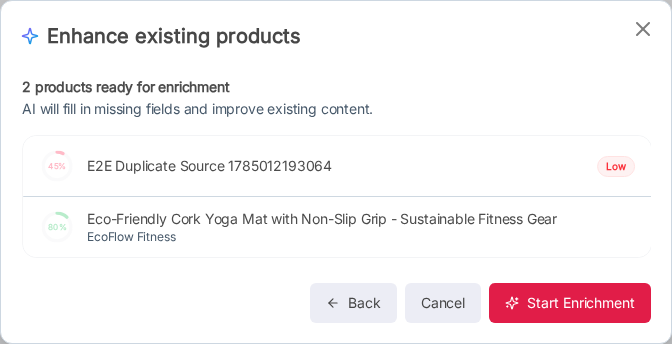
3
Review and start
The next screen shows all selected products with their completeness score. Products below 50% are flagged as Low.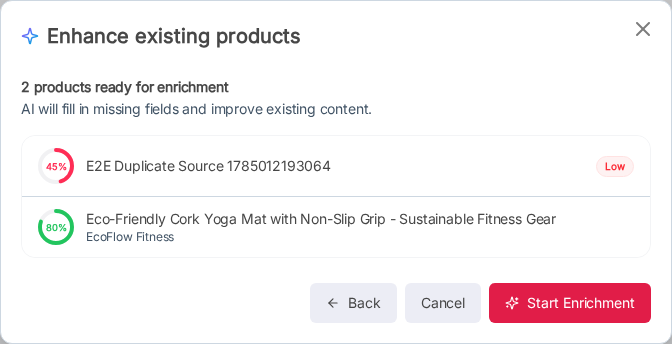 Click Start Enrichment.
Large batches (more than 10 products)
When more than 10 products are selected, enrichment runs as a background job instead of inline. The dialog confirms the count and then navigates you to the Jobs module where you can track progress.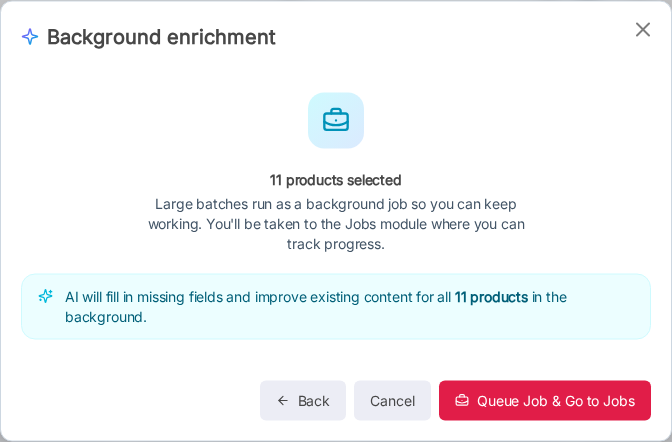
AI Enrich is a paid feature. Usage is metered. Check your workspace plan for included credits and overage rates.