

Overview
Export lets you download products in a portable format. You can export all products, a selection you’ve checked in the list, or a single product directly from its detail page.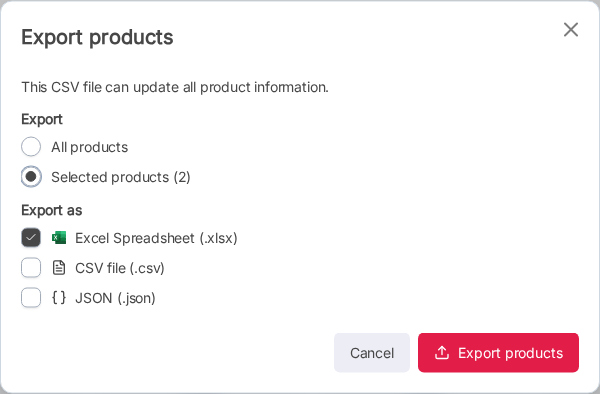
Export Formats
You can select one or more formats in the same export; a separate file is generated for each chosen format.Export All or Selected Products
1
Select products (optional)
On the Products list, check the rows you want to export. If no rows are checked, you can export all products from the dialog.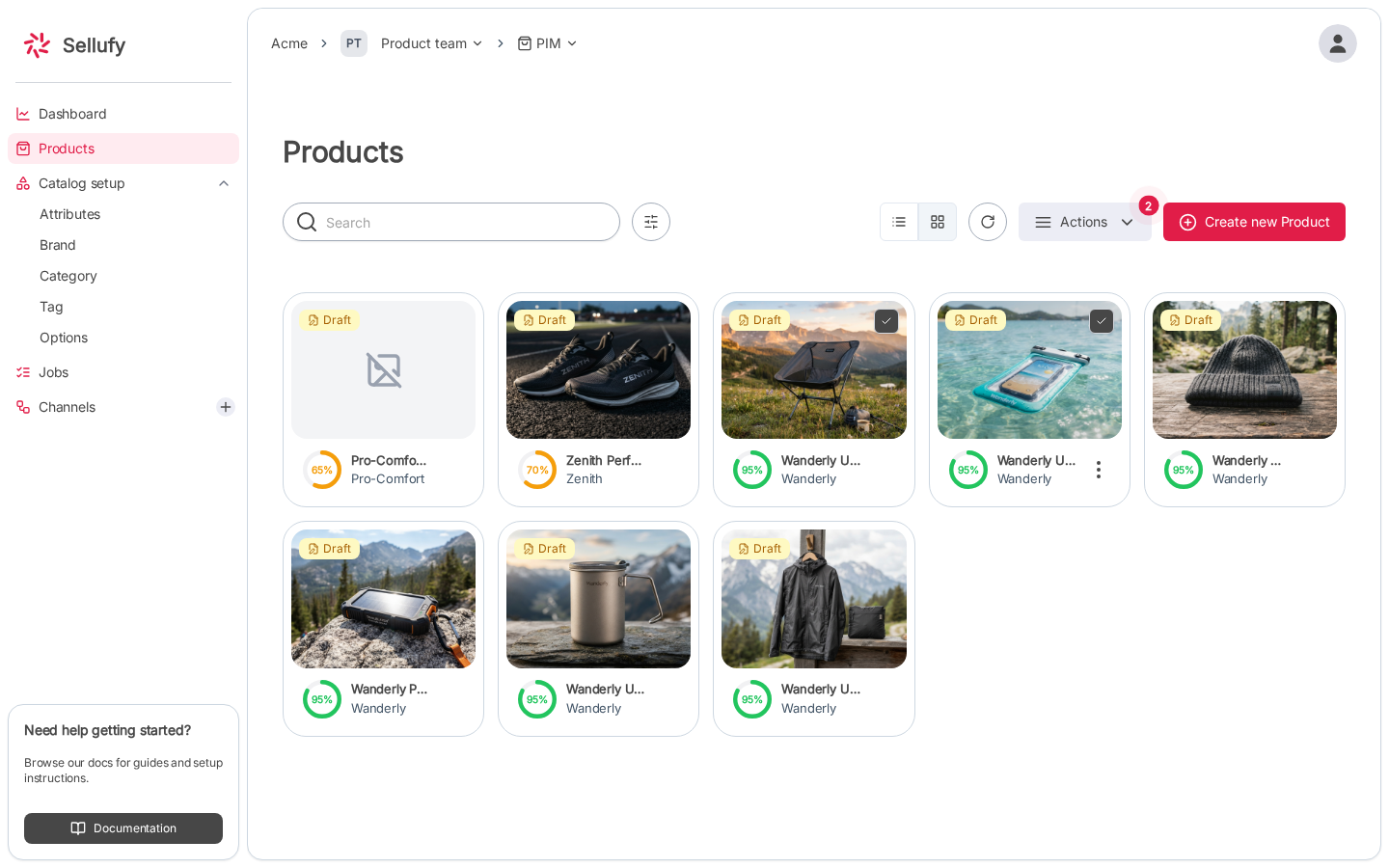
2
Open the Export dialog
Click Export in the Products toolbar.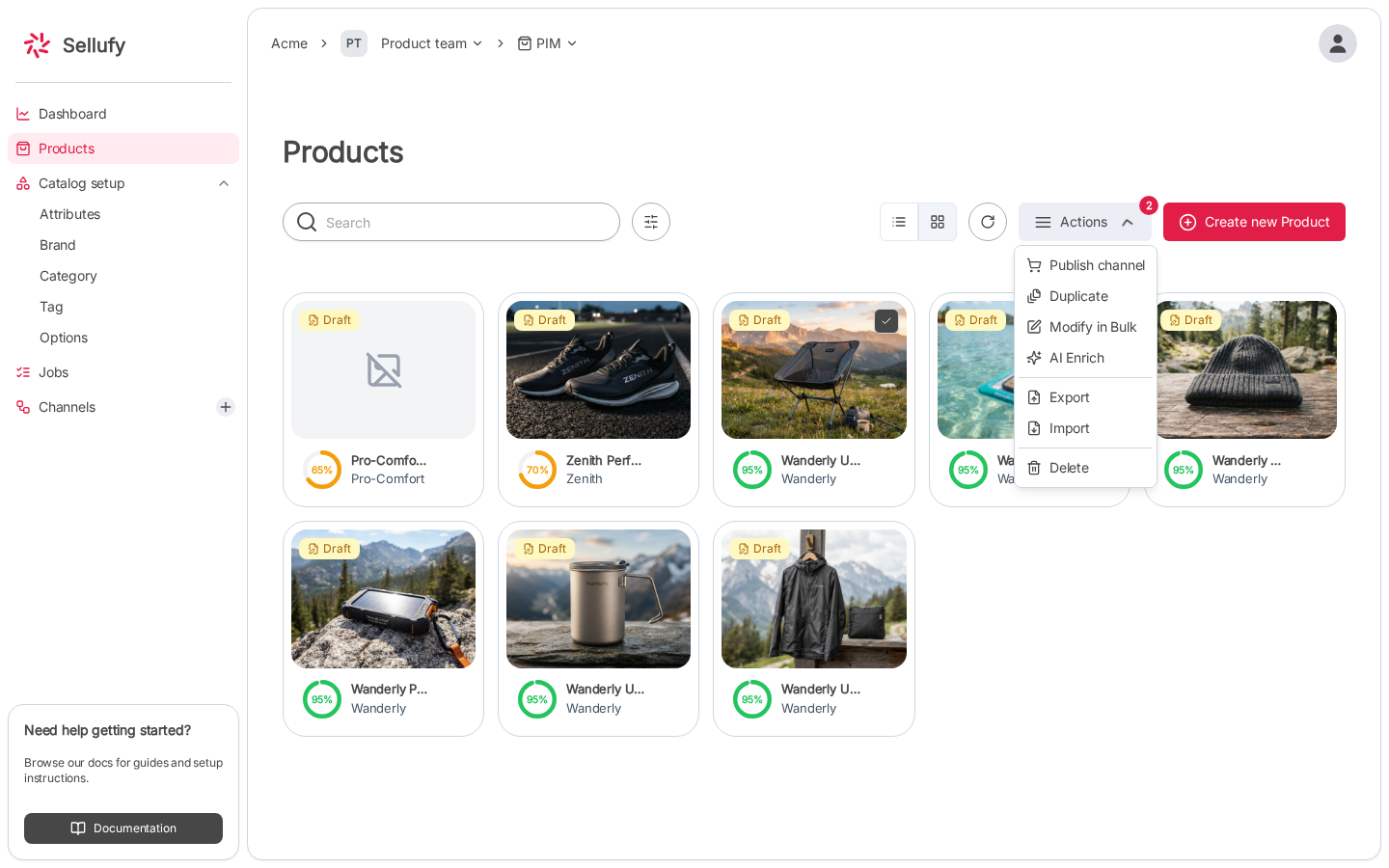
3
Choose scope
In the Export section, select: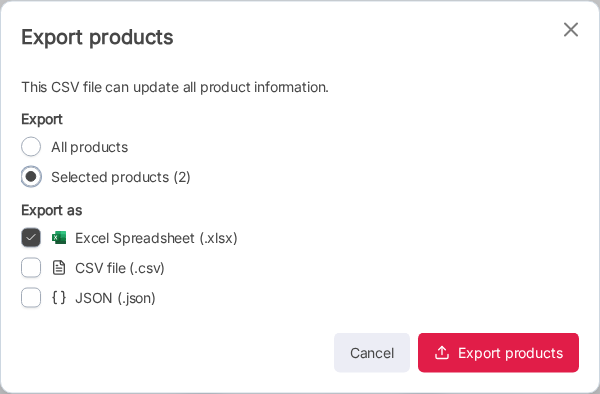
- All products: exports every product in your catalog
- Selected products (n): exports only the rows you checked (disabled if nothing is selected)
4
Choose format(s)
Check one or more formats under Export as. The Export products button is disabled until at least one format is selected.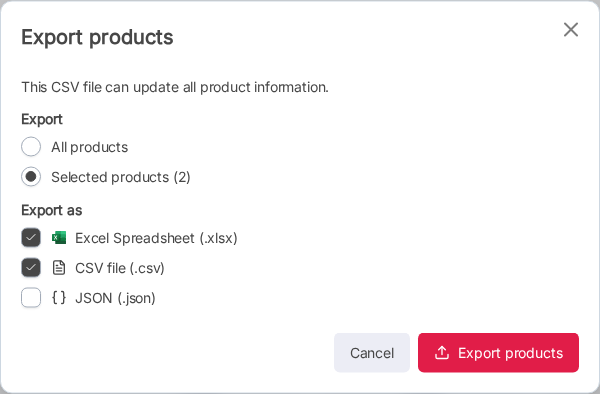
5
Export
Click Export products. Each selected format downloads as a separate file.
Export a Single Product
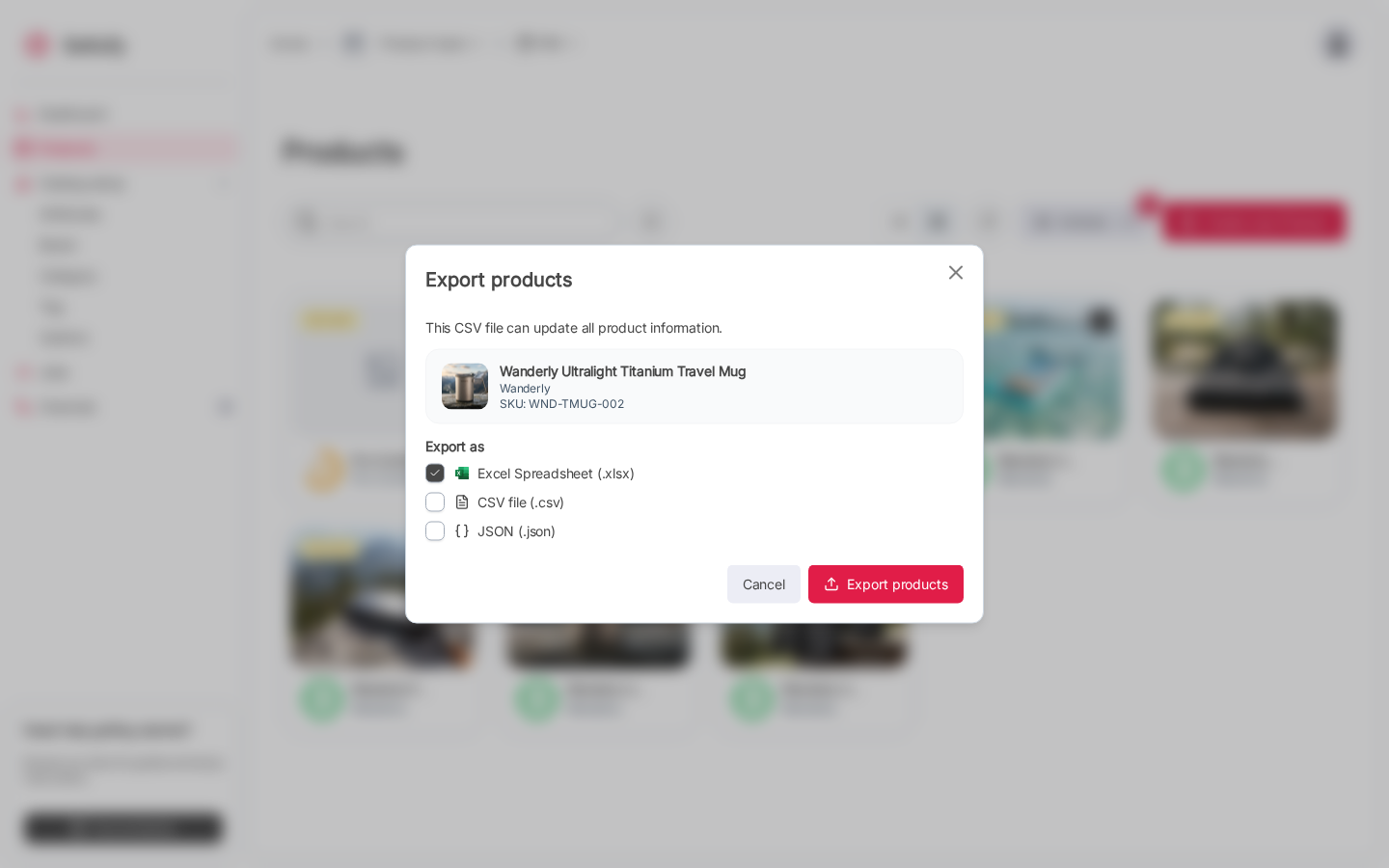
You can also export directly from a product’s detail page:- Open the product.
- Click the actions menu (three-dot icon) and select Export.
- The export dialog opens in single-product mode, showing a preview of the product.
- Choose one or more formats and click Export products.
The CSV export file can be used to update product information and re-imported via the Import wizard.