

Overview
Bulk Edit (labeled Modify in Bulk in the dashboard) lets you select multiple products and apply the same field changes to all of them in a single action. Only the fields you explicitly enable will be updated; all others are left untouched.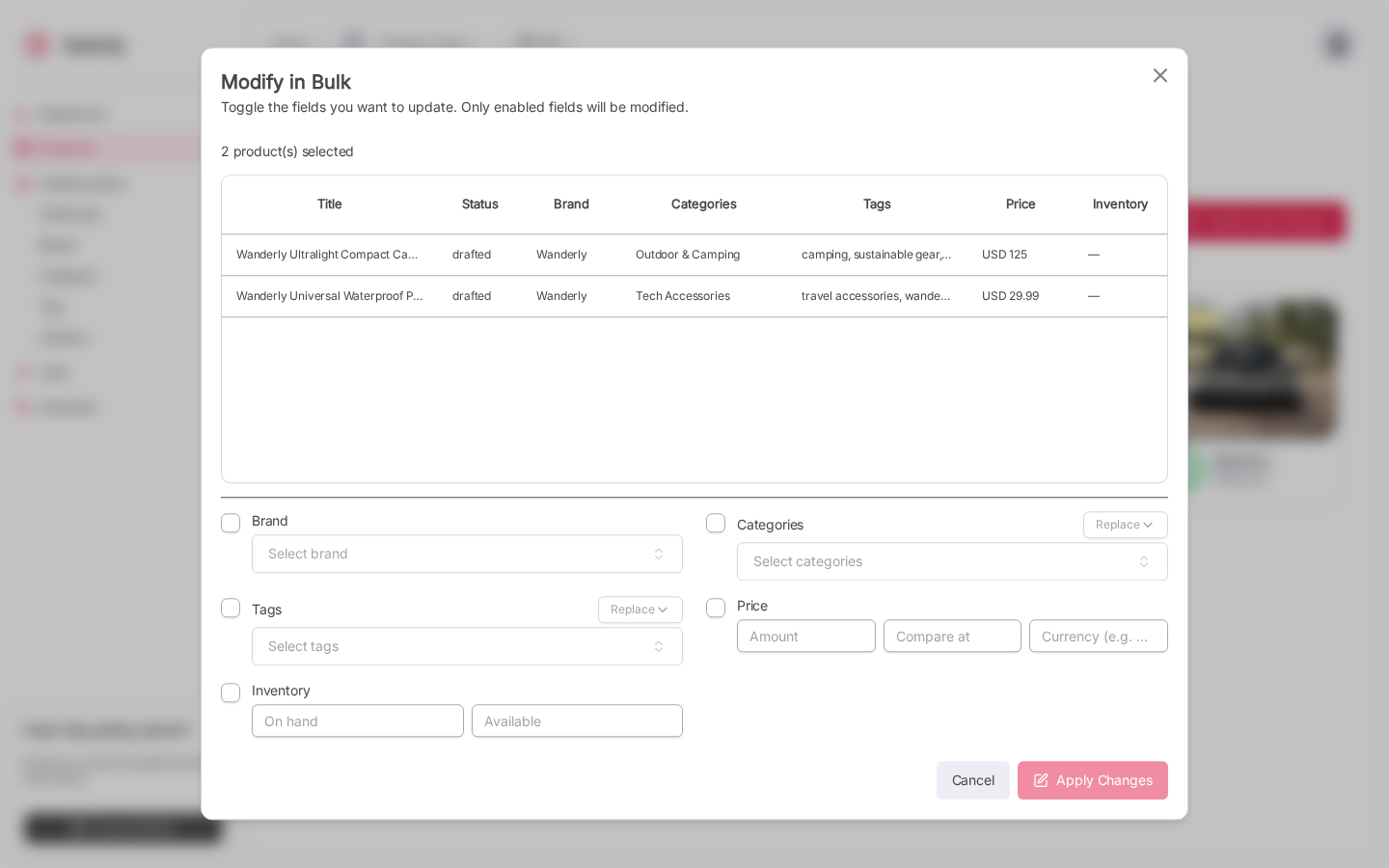
Steps
1
Select products
On the Products list, use the row checkboxes to select the products you want to edit.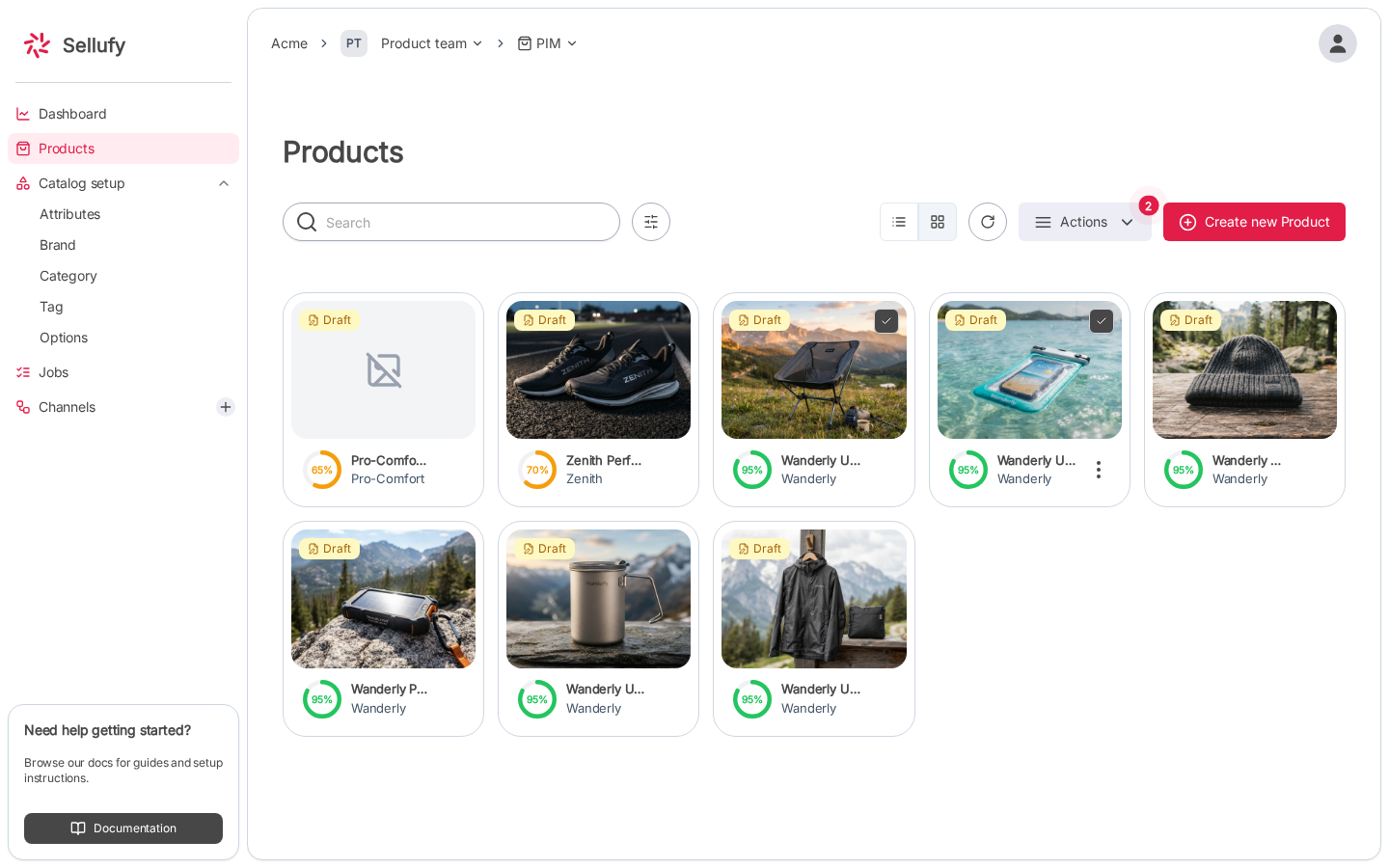
2
Open Modify in Bulk
Click Bulk Actions → Modify in Bulk in the toolbar that appears when products are selected.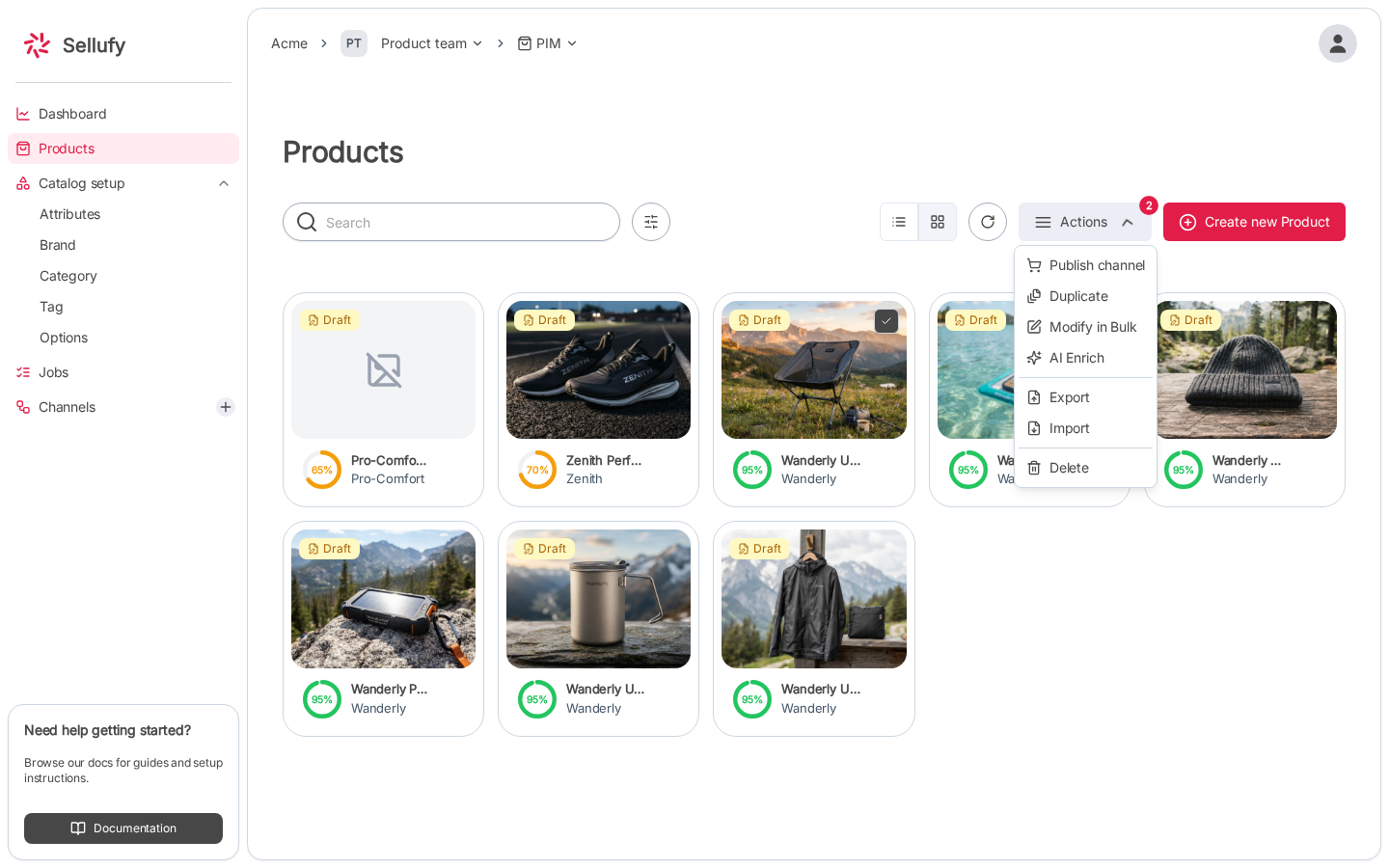
3
Enable and configure fields
The dialog shows the selected products in a preview table and a list of editable fields below. Toggle the checkbox next to each field you want to change, then set the new value.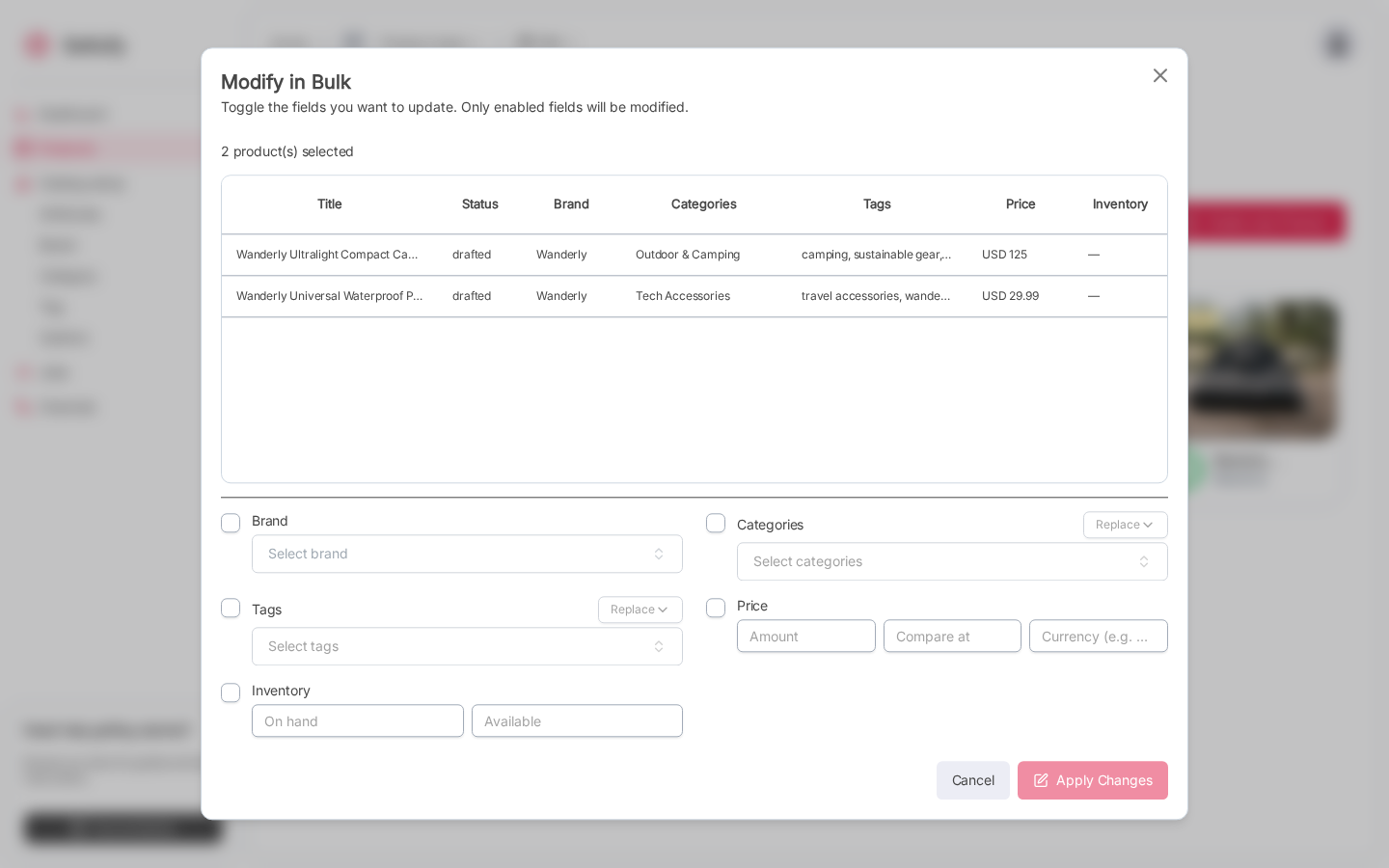
4
Apply changes
Click Apply Changes. The button is disabled until at least one field is enabled.
Editable Fields
Categories and Tags mode
When editing Categories or Tags you can choose how the new values are applied:- Replace: removes all current values and sets only the new ones
- Add to existing: keeps current values and appends the new ones