

Overview
The Asset page stores all media files used in your catalog. You can upload files using the Upload button or by dragging them directly onto the page.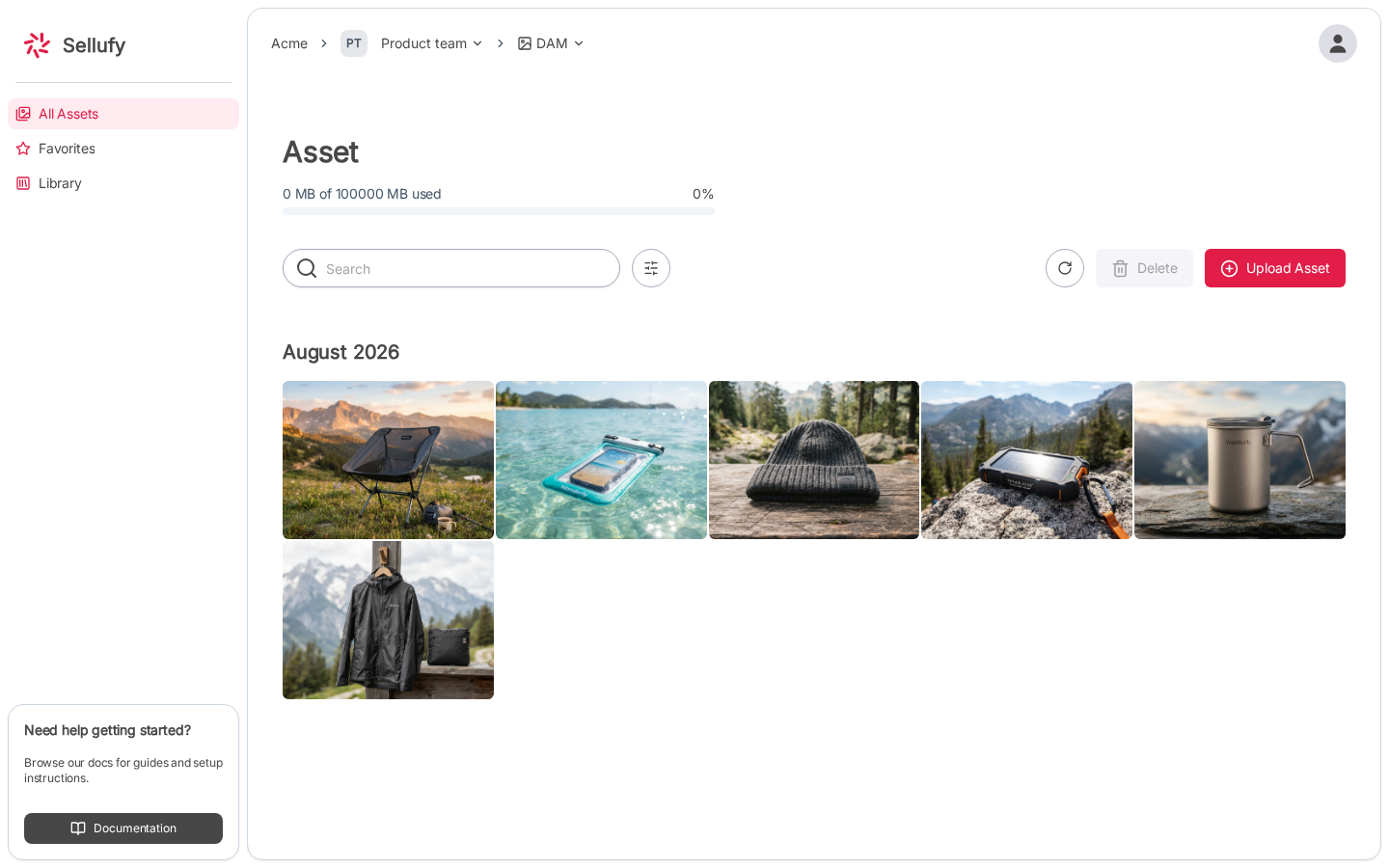
Supported File Types and Limits
Maximum file size: 100 MB per file.
Upload via Button
1
Open the Asset page
Click Asset in the left sidebar.
2
Click Upload Asset
Click the Upload Asset button in the top-right toolbar.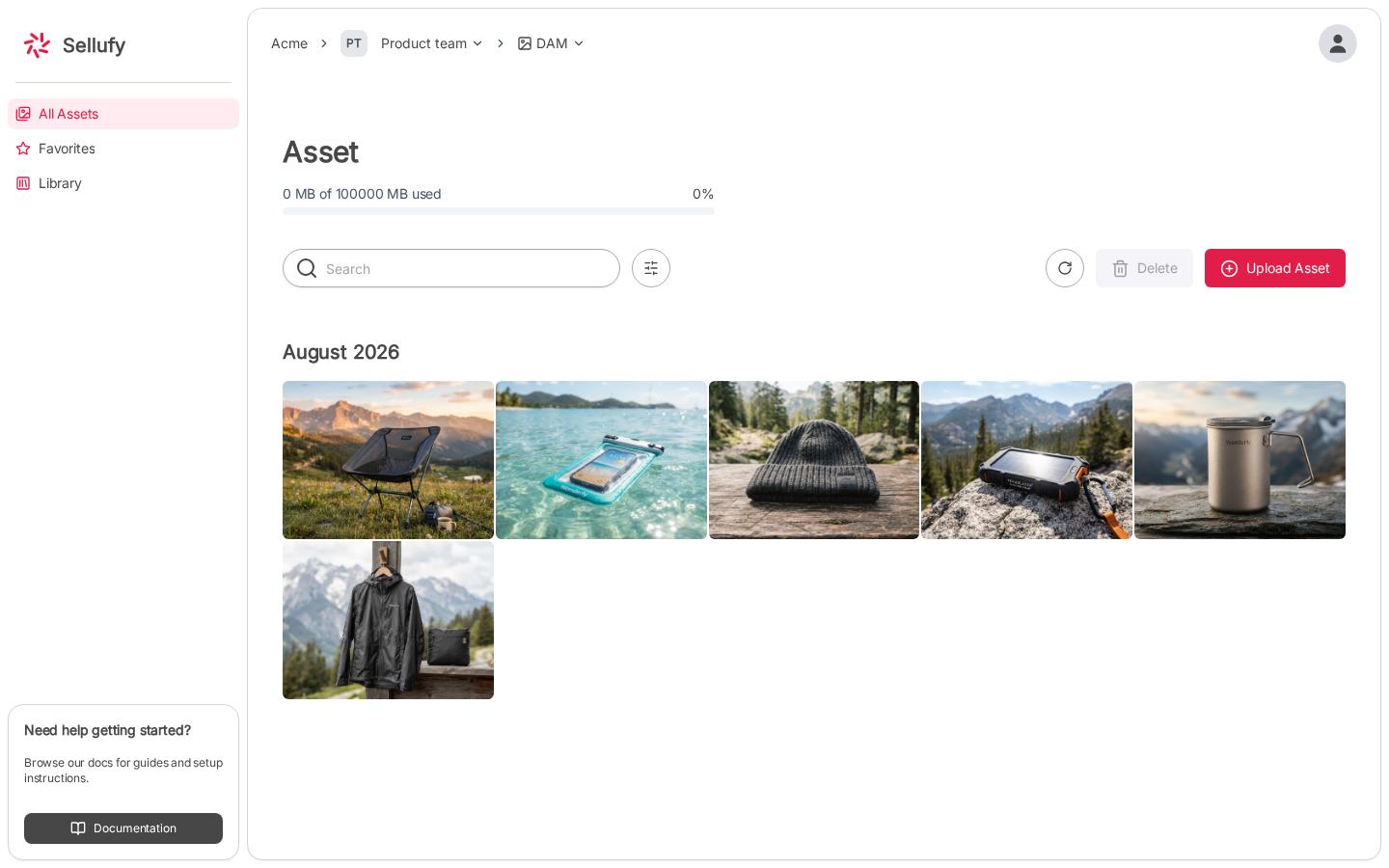
3
Select files
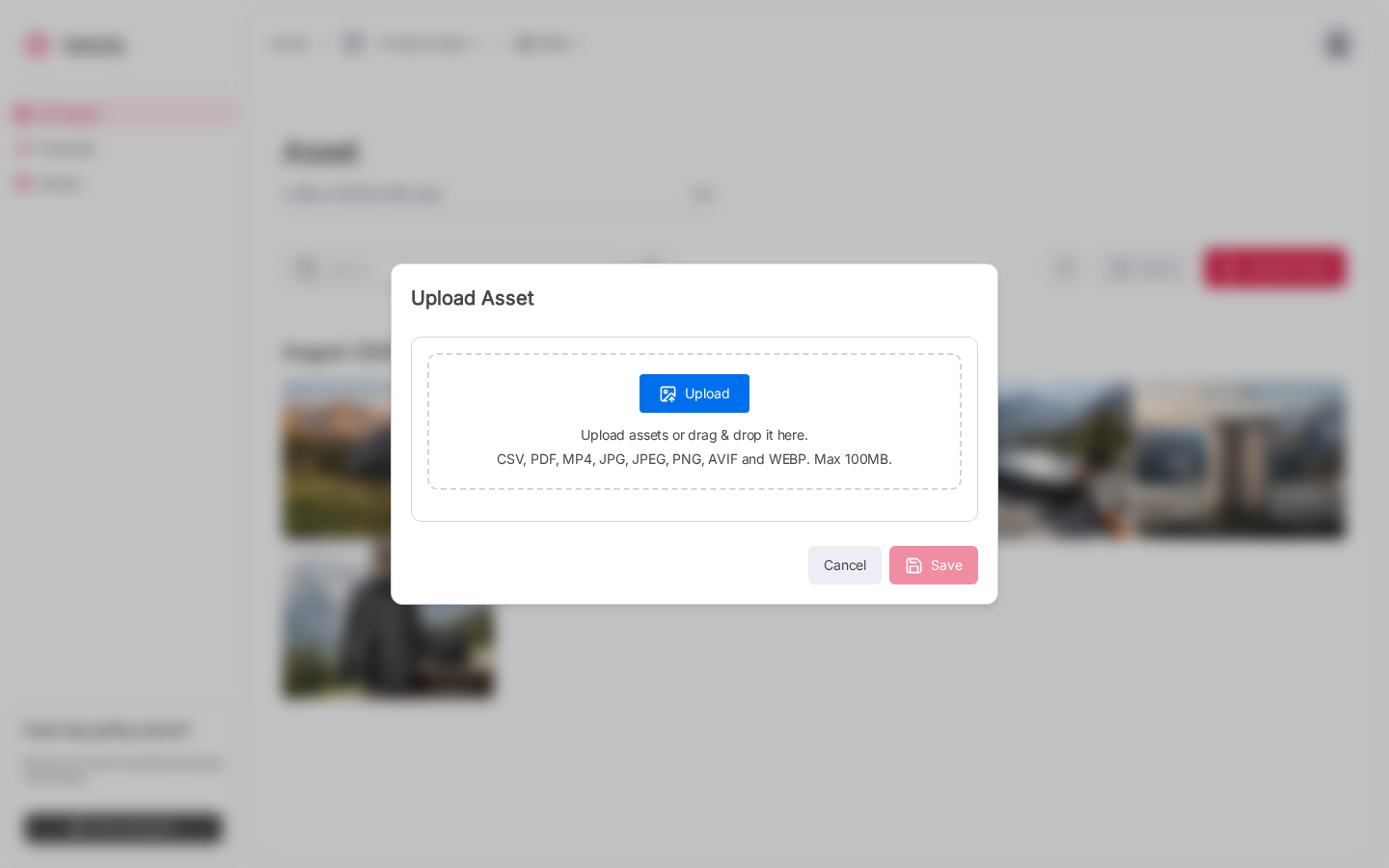
In the upload dialog, click Upload to browse and select files, or drag and drop them into the dashed zone.A preview grid shows thumbnails for images and videos, and a file icon for PDFs and CSVs. Remove any unwanted files by clicking the × button on their preview.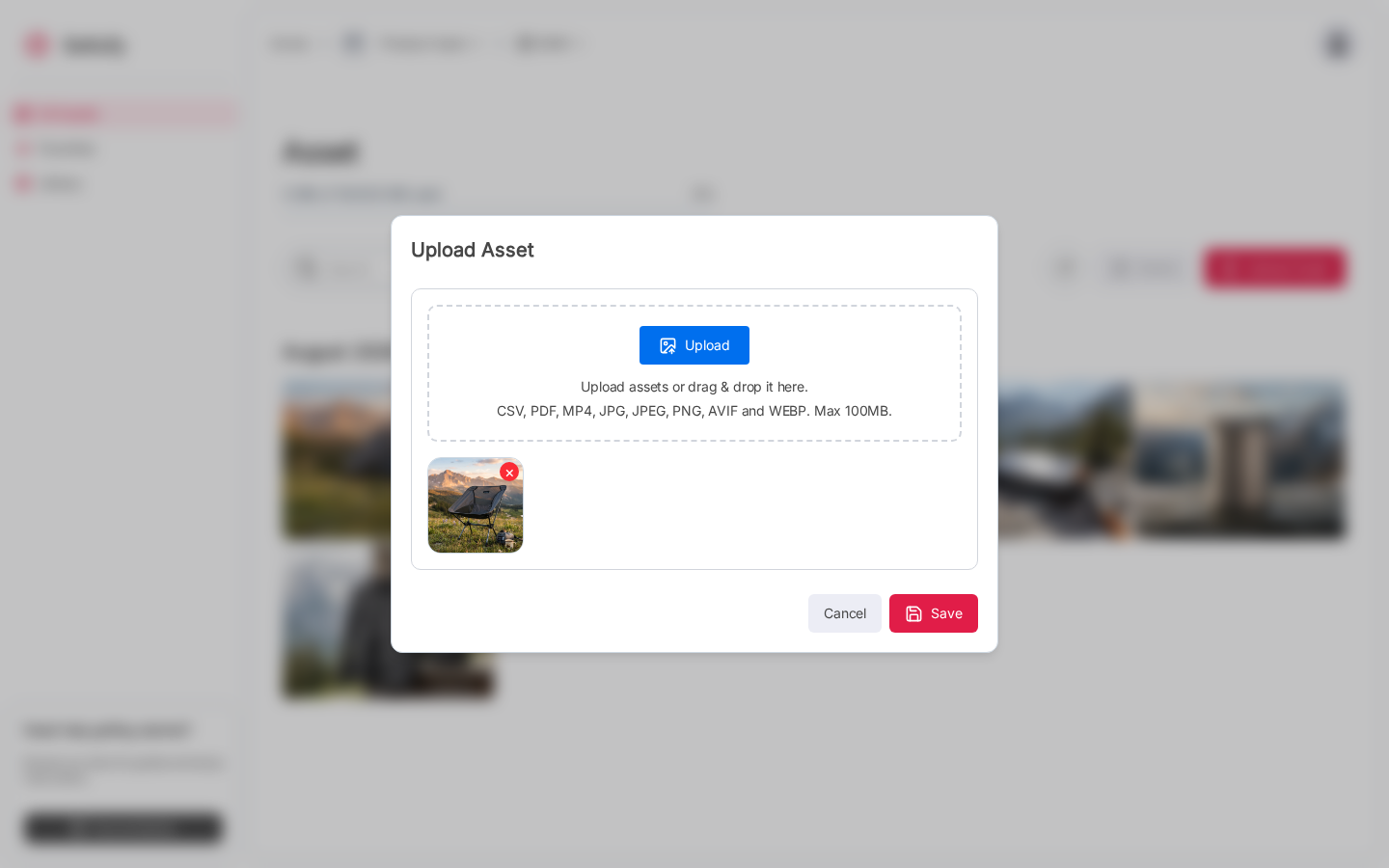
4
Save
Click Save. Files are uploaded and appear in the asset grid grouped by the current month.
Upload via Drag and Drop
You can also drag files directly onto the Asset page without opening the upload dialog:- Drag one or more files from your computer onto the Asset page.
- A full-page drop zone overlay appears with the message “Drop files to upload”.
- Release the files to start uploading.
After Uploading
Newly uploaded assets appear in the grid under the current month heading. Click any asset to open its detail view.You need the Upload permission to add assets. If the Upload Asset button is not visible, contact your workspace admin.