
Overview
The Asset page displays all uploaded files in a visual grid, grouped by the month they were uploaded. Clicking any asset opens a type-specific detail view.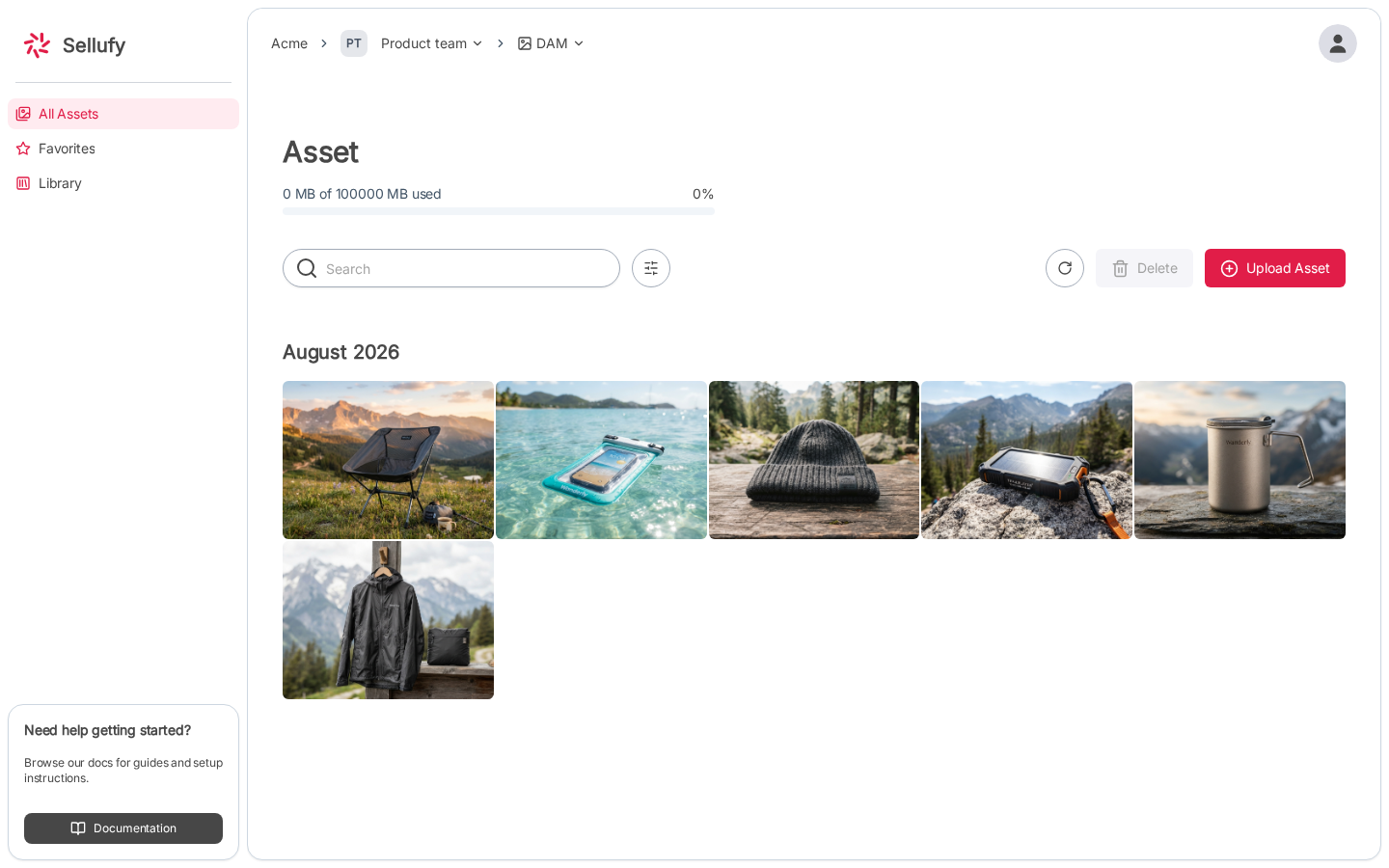
Browsing the Grid
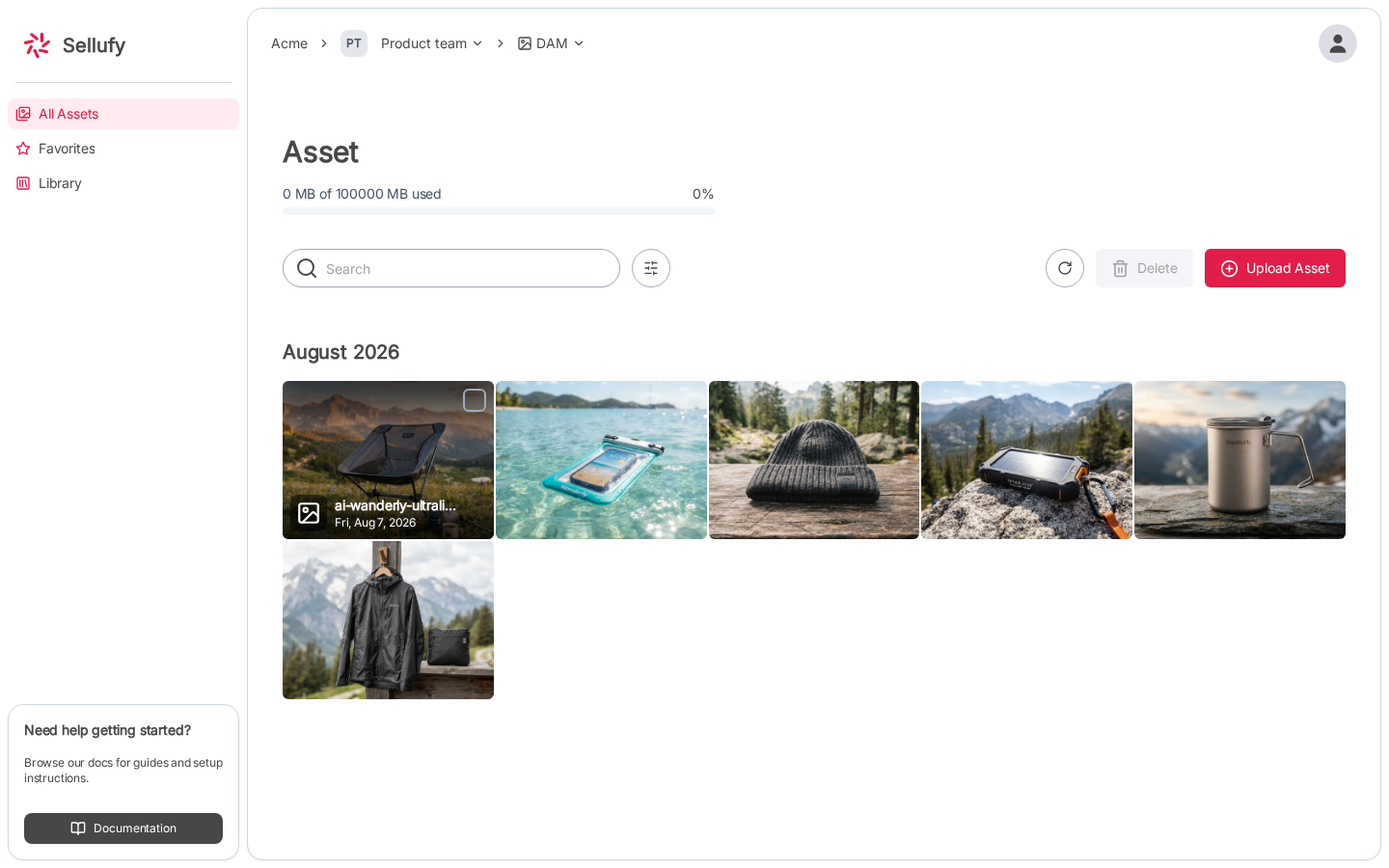
Assets are arranged in a responsive grid and grouped by upload month. The grid shows:- Images as full thumbnails that zoom on hover
- Videos as a video thumbnail (loaded at the 50-second mark)
- Documents (PDFs, CSVs) as a file icon with the filename
Search
Use the Search bar at the top of the page to find assets by name. Results update as you type.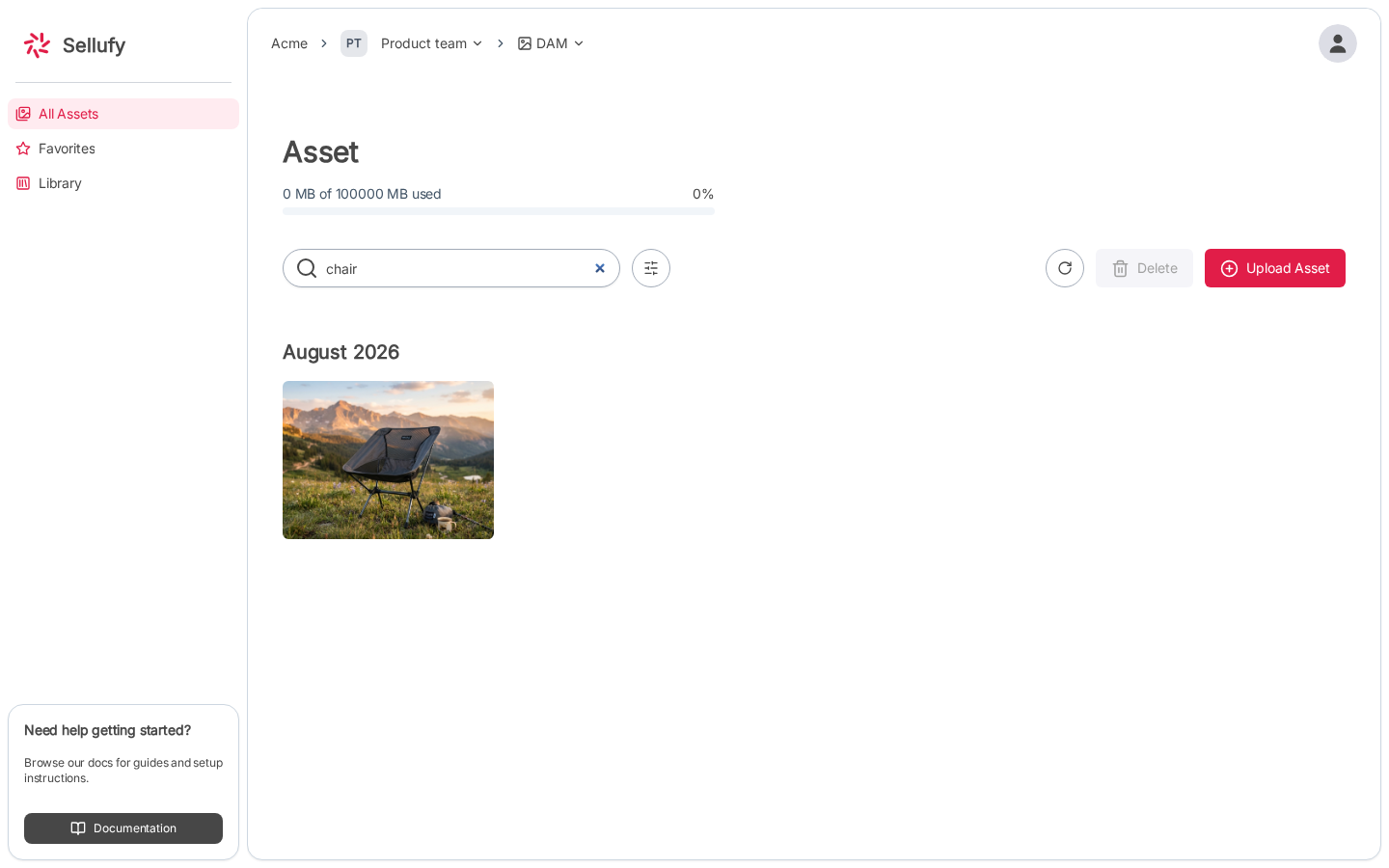
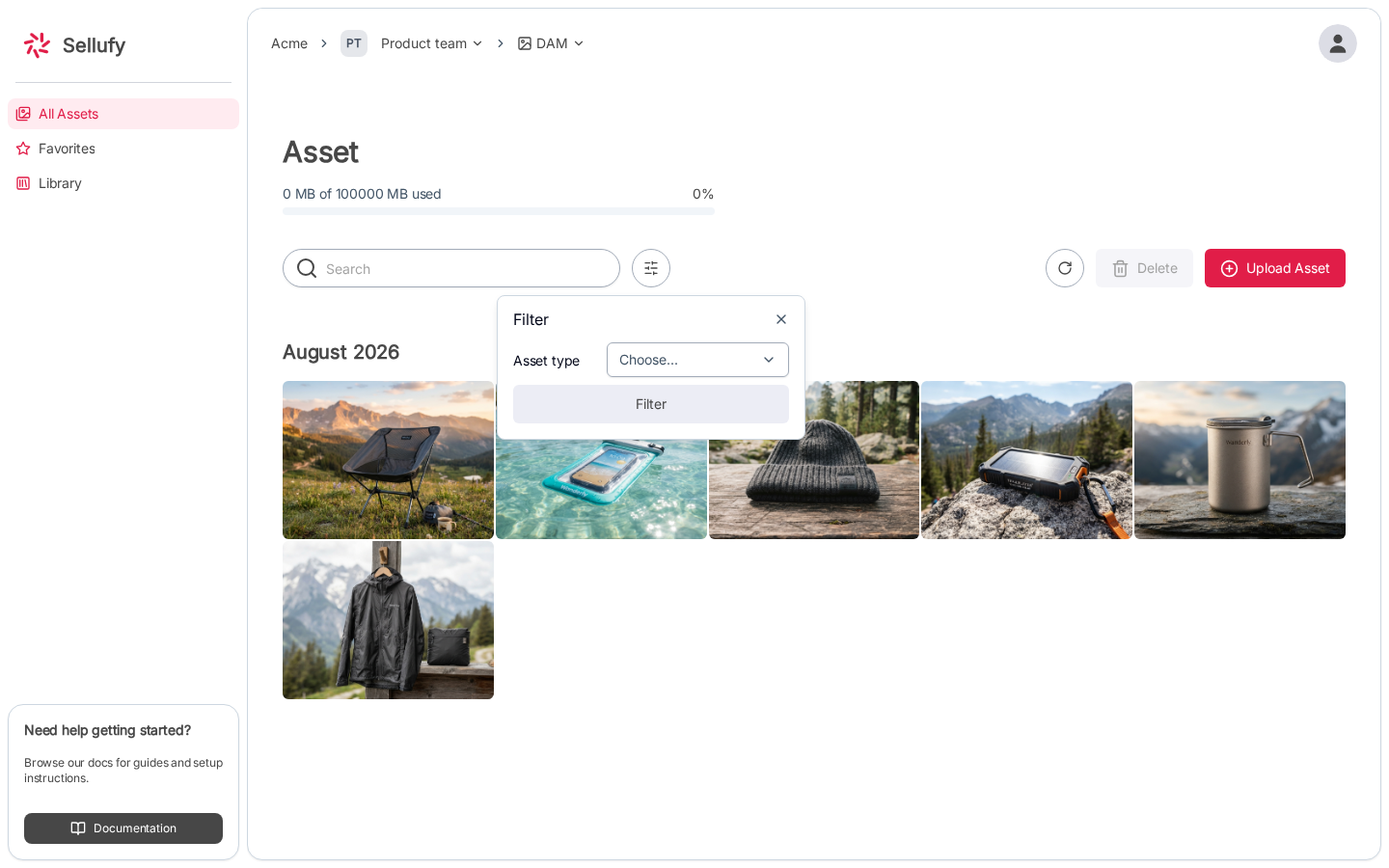
Filter by Asset Type
Click the filter icon (sliders) next to the search bar to open the filter panel. Select an asset type to narrow the grid:- Image
- Video
- Document
Asset Detail View
Click any asset thumbnail to open its detail view. The view type depends on the file:Asset Detail Panel
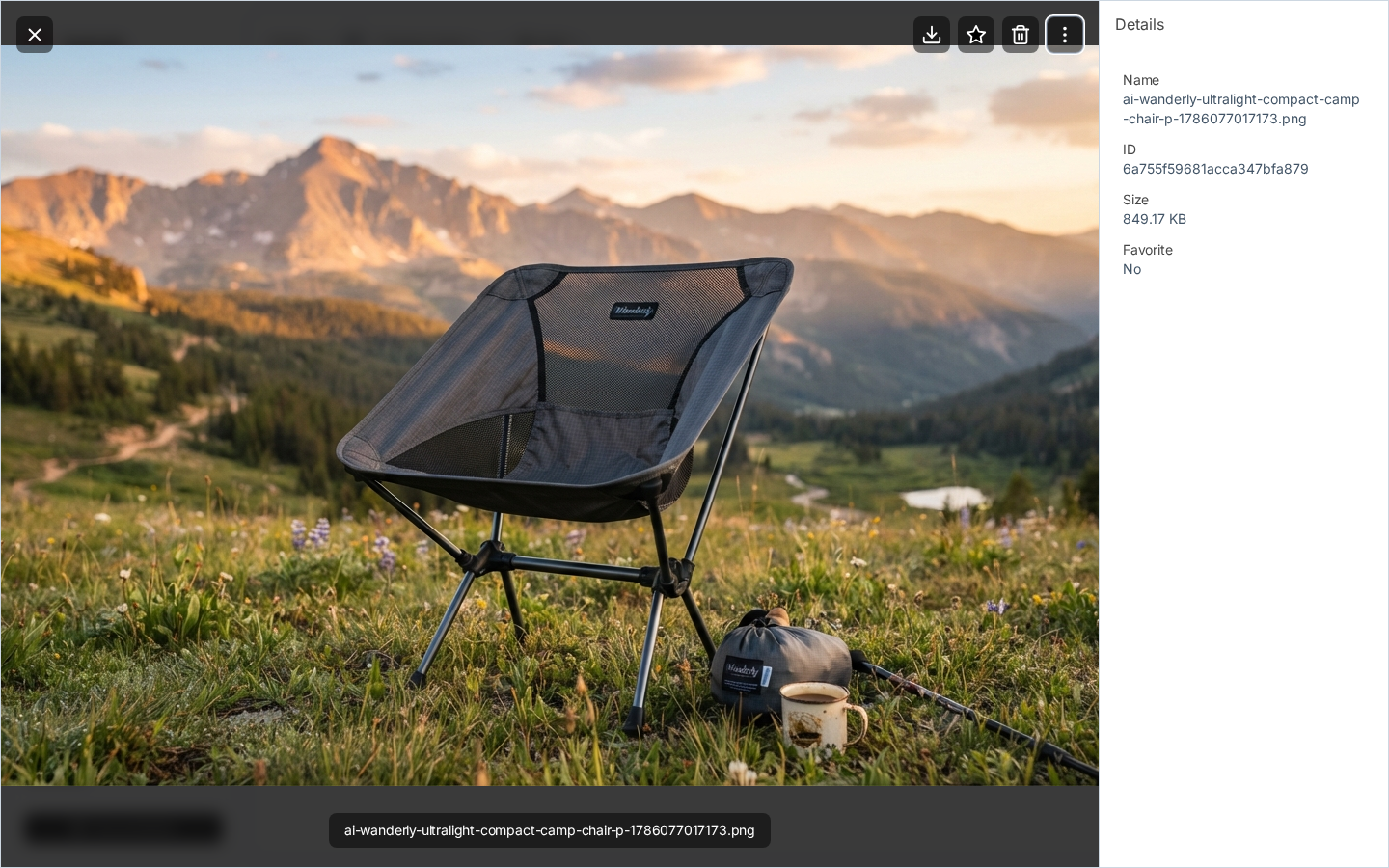
From the detail view, open the ⋮ actions menu and select View details to open the details panel:- Name
- ID
- Size
- Favorite: shows Yes/No
Toolbar and Actions Menu
The detail view’s toolbar (top-right) has three always-visible icon buttons — Download, Favorite (star), and the trash icon to delete the asset (see Delete Assets) — plus the ⋮ actions menu, which provides:- View details: toggle the details panel described above
- Add to library: add the asset to a curated library
- Share: opens the share dialog
Starring / Favorites
Click the star icon in the detail view toolbar to mark an asset as a favorite. Favorited assets show a star badge in the grid.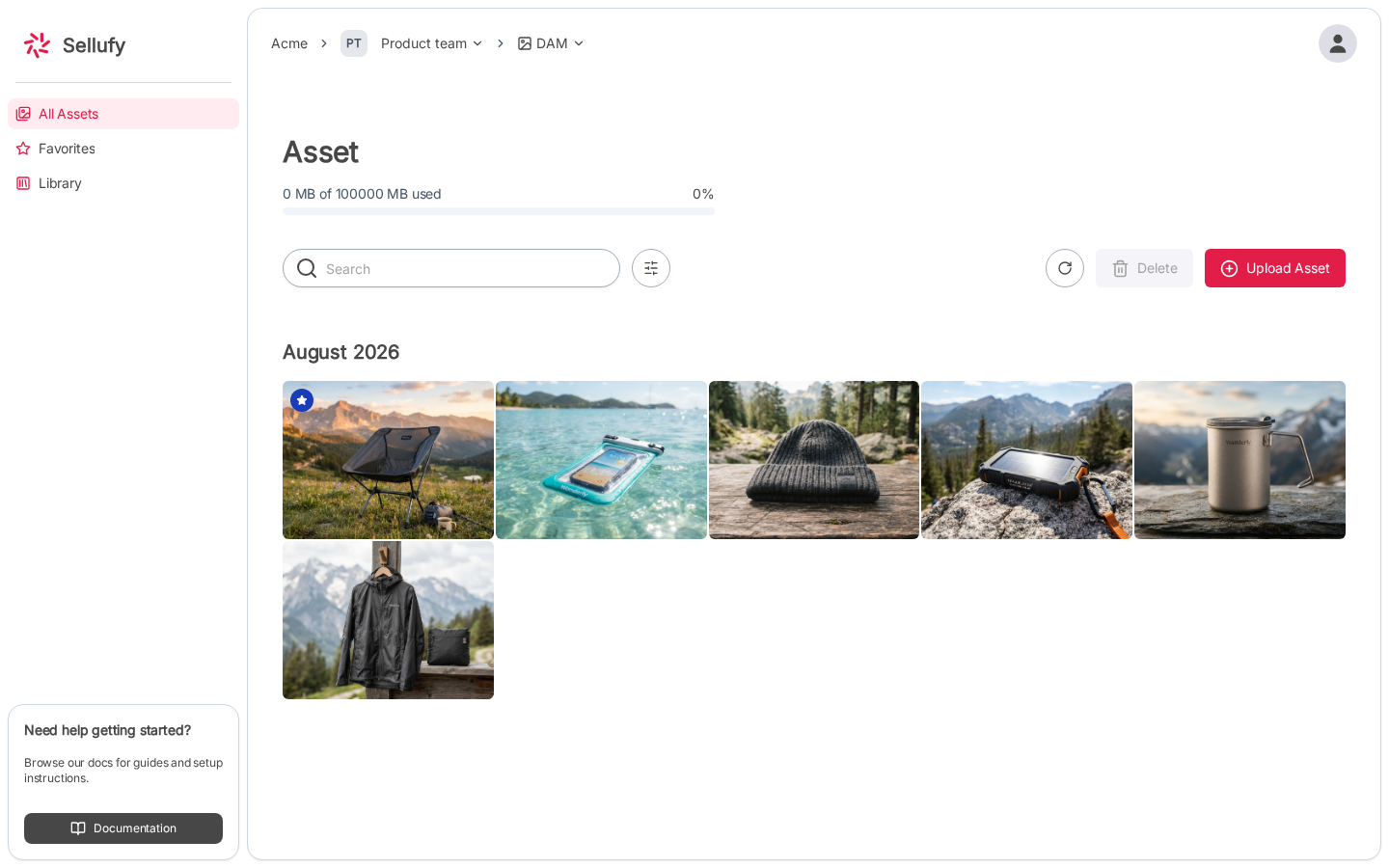
Sharing an Asset
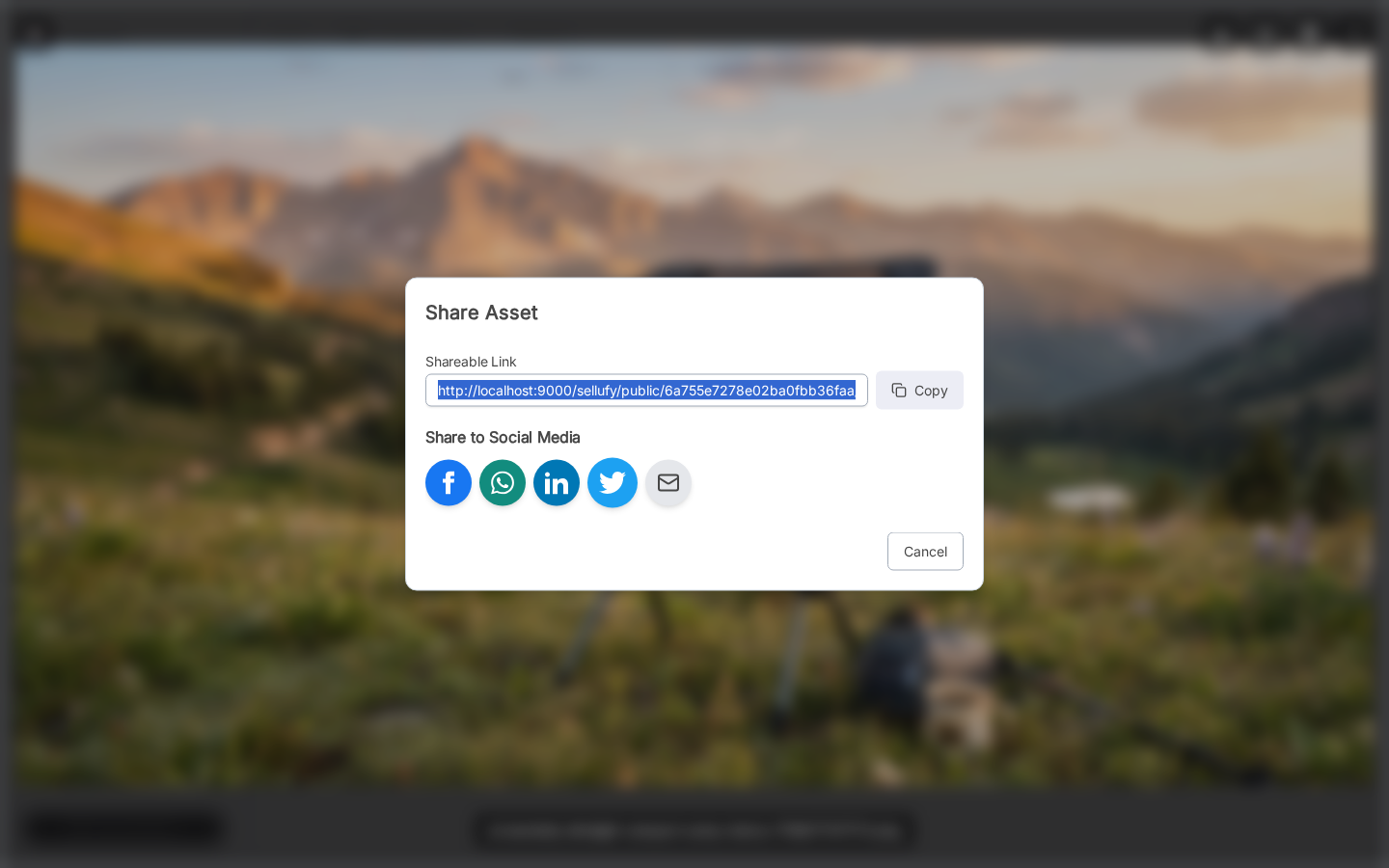
Open the ⋮ actions menu in the detail view and select Share to open the Share dialog. It provides:- A shareable link you can copy with the Copy button
- Direct sharing to Facebook, WhatsApp, LinkedIn, X (Twitter), and Email